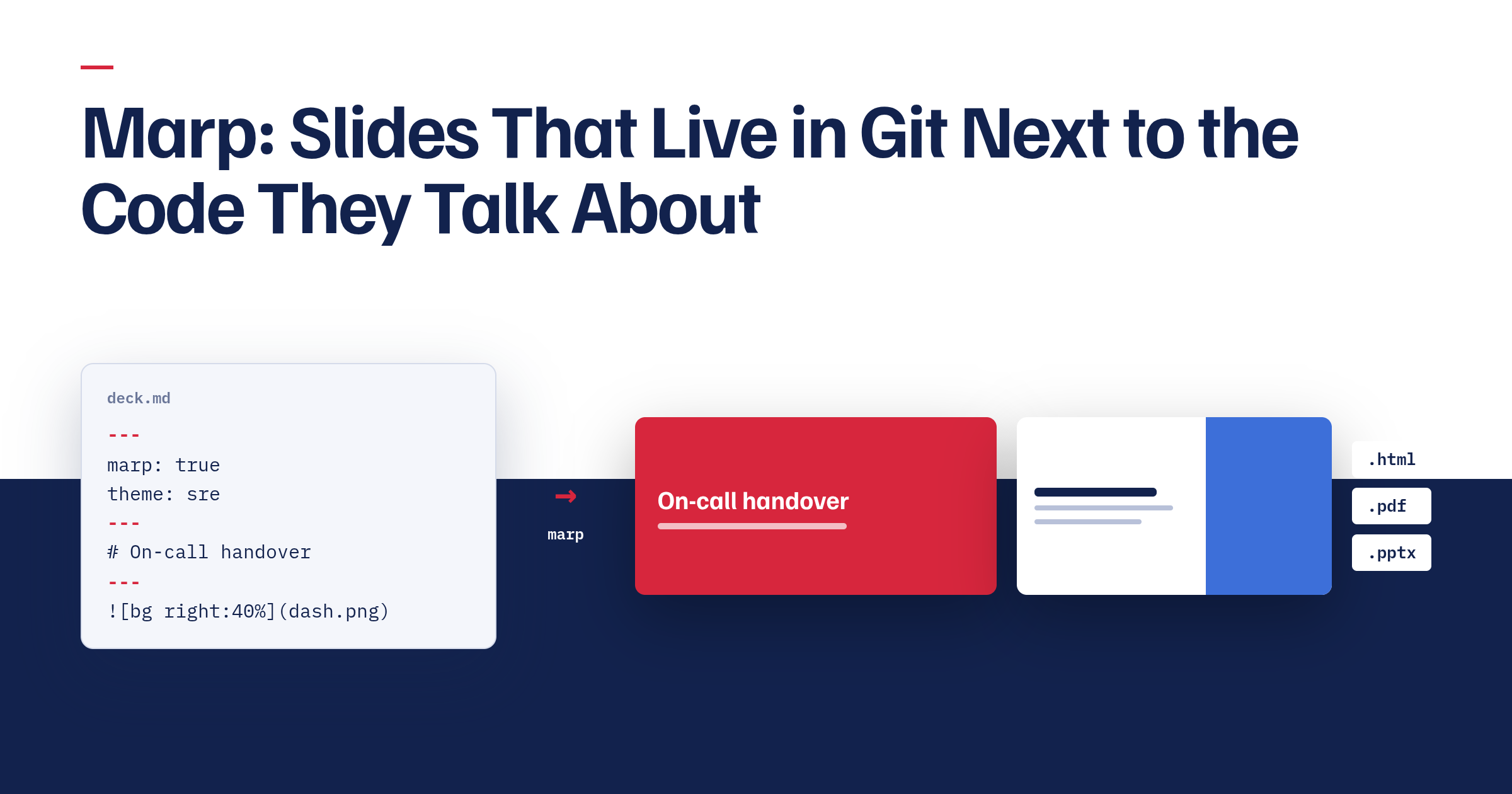
Marp is a converter that turns a Markdown file into a slide deck. A --- starts a new slide, a few YAML lines at the top pick a theme, and the output is HTML, PDF, or PowerPoint. That’s the whole pitch, and it’s enough for my slides to live in git next to the runbooks and the code they talk about.
Why slides in Markdown at all
A deck in Keynote or Google Slides is a binary blob that nobody can diff. For a talk you give once that’s fine. For the decks I keep coming back to, an onboarding walkthrough, an incident review template, the same architecture overview updated every quarter, it isn’t.
A Marp deck is one Markdown file where every --- is a slide boundary, so a pull request diff reads as “slide seven changed” and git blame on a bullet tells you who added it and when. Code on a slide is a fenced block rather than a screenshot, so it’s the snippet from the repo and it goes through the same Markdown linting as the README. You write it in whatever editor you already write everything else in.
The usual objection is that you give up layout control. You give up some. What you get back is a theme that’s plain CSS, which turns out to be a better deal than it sounds, and most of this post is about that trade.
Where Marp came from
The original Marp was an Electron desktop app by Yuki Hattori, published from the yhatt/marp repo with the first tags landing in May 2016: a live-preview editor with PDF export. Maintenance stopped in 2017, and the repo was archived in September 2019 with a blunt closing note: a security report had shown that opening a malicious Markdown file could execute arbitrary code, so stop using it and move to “Marp Next”.
Marp Next is what everyone means by Marp today, and it’s a rewrite into layers rather than a single app:
- Marpit is the base framework, with a first changelog entry in March 2018. It’s deliberately small: Markdown plus a CSS theme in, HTML and CSS out, with a plugin system and nothing else. It doesn’t even ship a theme.
- Marp Core sits on Marpit and adds the practical bits: three built-in themes, emoji, math, auto-scaling, and safer HTML handling. v1.0.0 came in January 2020. Every official Marp tool uses Marp Core as its engine.
- Marp CLI is the converter, with tags going back to August 2018.
- Marp for VS Code started in February 2019. It’s a preview and export extension, and it’s what replaced the desktop app for most people.
The split matters because it explains a lot of behaviour. When a feature says “only works in inline SVG mode” or “the app must support this attribute”, that’s Marpit talking: it produces markup and leaves presentation behaviour to whatever consumes it.
A complete deck in one file
Here’s a small but complete deck.
---
marp: true
theme: default
paginate: true
header: "Platform team"
footer: "Internal, do not distribute"
---
<!-- _paginate: false -->
<!-- _class: invert -->
# On-call handover
What changed this week, and what's still on fire
---
## Things that paged
- Disk pressure on the metrics nodes
- Cert renewal failed for the staging ingress
---
<!-- _backgroundColor: #fff8e1 -->
## Still open
* The disk alert has no runbook yet
* Nobody owns the staging cert
---

## Next week
Add the runbook, assign the cert, close this out.
The front-matter is YAML. marp: true tells the VS Code extension to treat this file as a deck instead of a normal Markdown document; the CLI converts whatever you hand it and doesn’t need it. --- on its own line starts a new slide. Everything else is a directive or an image with a special alt text.
Directives: global, local, and the underscore
Directives are the configuration layer. You write them in the front-matter or in an HTML comment anywhere in the deck, and they’re parsed as YAML.
Global directives apply to the whole deck. Marpit defines four: theme, style (extra CSS), headingDivider (start a new slide at every heading of a given level), and lang. Marp Core adds size (16:9 or 4:3 with the built-in themes) and math (katex or mathjax). If you set one twice, the last one wins.
Local directives apply to a slide and carry forward to every slide after it. paginate, header, footer, class, color, backgroundColor, backgroundImage, and the rest of the background* family are all local.
The carry-forward is the part that catches people. Set header: "Platform team" on slide three and slides four through twenty get it too. That’s usually what you want, which is why the front-matter is the normal place for it.
When you want a directive on one slide only, prefix it with an underscore. <!-- _paginate: false --> hides the page number on that slide and nowhere else; that’s how the title slide above skips pagination and gets the inverted colour scheme while the rest of the deck stays normal. paginate also takes hold (show the number but don’t increment) and skip (neither), for appendix or section-divider slides.
header and footer accept inline Markdown and inline images, so a logo in the footer is footer: " Platform team". They don’t accept ![bg].
What Marpit actually produces
Under the hood Marpit is a markdown-it pipeline. It splits the document on horizontal rules, renders each piece, and wraps it in a <section>. Directives become attributes and classes on that section. The theme CSS is rewritten so that every selector is scoped to the slide container, which is why a theme can say h1 { ... } without leaking into the page around it.
flowchart LR
    MD["deck.md<br/>(CommonMark + directives)"] --> MI["Marpit<br/>markdown-it + theme CSS"]
    CSS["theme.css<br/>/* @theme name */"] --> MI
    MI --> HTML["HTML: one section element per slide<br/>+ scoped CSS"]
    HTML --> CLI["Marp CLI"]
    CLI --> OUT1["deck.html"]
    CLI --> BR["headless Chrome / Edge / Firefox"]
    BR --> OUT2["deck.pdf / deck.pptx / PNG"]
Each section is sized by the theme. The default is 1280x720 px, set with width and height on section in absolute units, and that same size becomes the PDF page size.
A fixed-size slide still has to fit a browser window of any size, and Marpit manages that without JavaScript. With inline SVG mode on, which Marp Core enables, each section is wrapped like this:
<svg data-marpit-svg viewBox="0 0 1280 720">
  <foreignObject width="1280" height="720">
    <section>...</section>
  </foreignObject>
</svg>
The viewBox fixes the slide’s coordinate system, the SVG is sized to the viewport with CSS, and the browser scales the whole thing. Marpit calls this mode experimental because WebKit has a long-standing bug scaling HTML inside foreignObject, and leaves it off by default. Marp Core turns it on by default, and a few features depend on it: multiple and split backgrounds, and the auto-scaling of code blocks. If you ever build on raw Marpit and ![bg right] does nothing, check that option first.
Rendering with Marp CLI
Marp CLI is a Node package. The one-liner is:
npx @marp-team/marp-cli@latest deck.md
With no flags you get deck.html, with the slides, the theme, and a small presentation runtime (arrow keys, presenter view). The other formats are flags: --pdf, --pptx, --images png for every slide as an image, --image png for just the first. Naming the output with -o deck.pdf does the same thing as the flag.
Everything except HTML needs a browser. Marp CLI drives a headless Google Chrome, Microsoft Edge, or Firefox, and you have to have one installed. --browser picks which (auto, the default, tries chrome,edge,firefox in that order), and --browser-path points at a specific binary, which is how you use Chromium, Brave, or anything else Chromium-flavoured. The browser is the renderer: PDF is the browser’s print-to-PDF, images are screenshots. That’s also why the PDF looks exactly like the HTML. There’s no second layout engine.
A few flags worth knowing before you need them:
--allow-local-files. The browser-based conversion blocks local file access by default, so a deck that references./img/dashboard.pngrenders with a missing image and a warning. The README marks the flag as not secure and says to use it only on Markdown you trust: you’re letting an HTML document read your disk.--pdf-notesadds presenter notes as PDF annotations.--pdf-outlinesadds bookmarks from the slide pages and headings.--watch(-w) re-renders on save and reloads the open HTML.--server(-s) serves a directory over HTTP instead of writing files, and you pick the format with a query string (?pdf).--preview(-p) opens a window with watch mode on.--themeoverrides the theme by name or CSS file,--theme-setregisters extra theme files or a whole directory. More on those below.
If you don’t want Chrome on the machine, the official image bundles Chromium:
docker run --rm --init -v "$PWD":/home/marp/app/ -e LANG=$LANG marpteam/marp-cli deck.md --pdf
The image is marpteam/marp-cli on Docker Hub and ghcr.io/marp-team/marp-cli on GHCR. The mount target is /home/marp/app/, and LANG is passed through so fonts and locale behave.
One thing to set expectations on: PPTX export is not an editable PowerPoint. The README says a created PPTX “includes rendered Marp slide pages”, and the editable-export section is more direct: the normal output “usually consists of pre-rendered background images”. Each slide is a picture of the slide. It opens in PowerPoint and presents fine, but nobody is going to fix a typo in it. --pptx-editable is the experimental alternative. It needs LibreOffice Impress installed alongside the browser, drops presenter notes, and the README warns it may produce incomplete results with complex themes like gaia. If someone asks for “the PPTX so I can edit it”, send them the Markdown.
Images, layouts, and the alt text
Marpit overloads the alt text of a Markdown image. Keywords in there control size, filters, and backgrounds.
 <!-- width 300px -->
 <!-- any CSS length except vw/vh -->
 <!-- CSS filter -->
 <!-- filters stack -->
The filters are the CSS filter functions, blur through sepia. Omit the argument and you get a default.
Add bg and the image becomes the slide background instead of an inline element:
 <!-- cover, the default -->
 <!-- fit inside, no cropping -->

Two ![bg] images on one slide tile side by side; add vertical to stack them. ![bg left] or ![bg right] reserves half the slide for the image and squeezes the content into the other half, and ![bg right:40%] sets the split. One line, and you have the “screenshot on one side, bullets on the other” slide without touching CSS. The simple background ignores filters; the multiple and split ones apply them.
Marp Core adds two more things at this level. # <!-- fit --> Some long title scales a heading to the slide width, which is the fix for a title slide where the text wraps. And code blocks auto-scale horizontally to fit, so a wide snippet shrinks rather than overflowing. Horizontally only: a tall block still runs off the bottom.
Fragmented lists hide in the bullet character. A list written with * is revealed one item at a time in the HTML presentation; one written with - appears all at once. Same for ordered lists: 1) fragments, 1. doesn’t. In the deck above, “Things that paged” lands in one go and “Still open” builds up item by item. Marpit only emits a data-marpit-fragment attribute; the HTML runtime interprets it, so in the PDF both are plain lists.
Themes are plain CSS
A Marp theme is a CSS file with one required comment:
/* @theme sre */

@import 'default';

section {
  font-family: "Inter", sans-serif;
  padding: 60px;
}

section.lead {
  display: flex;
  flex-direction: column;
  justify-content: center;
  text-align: center;
}

section::after {
  content: attr(data-marpit-pagination) " / " attr(data-marpit-pagination-total);
  font-size: 14px;
}

header, footer {
  position: absolute;
  font-size: 14px;
  color: #666;
}
header { top: 20px; left: 60px; }
footer { bottom: 20px; left: 60px; }
@theme is how Marpit registers the name you then use in theme: sre. The file name doesn’t matter; the comment does. @import 'default' pulls in a built-in theme so you only override what you care about. Marp Core ships three: default (GitHub Markdown look), gaia, and uncover. All three support class: invert; gaia also has lead (centred content, for title slides) and gaia.
section is the slide. section::after is where the page number goes, and the content has to include attr(data-marpit-pagination) or Marpit drops the declaration. Marpit gives header and footer no styling of their own, but default does, so the rules above are overriding its positions rather than filling a gap.
Look at the section.lead rule above. class is a local directive, so <!-- _class: lead --> applies that layout to one slide, and class: lead in the front-matter applies it everywhere. You can stack them: <!-- _class: lead invert -->. Define a handful of layout classes in the theme (lead, two-col, quote, whatever your decks keep needing) and a slide picks one with a comment. That’s the whole “reusable component” story: a CSS class and a one-line directive, no templating.
For a one-off tweak, Markdown can carry CSS directly. A <style> block anywhere in the deck is merged into the theme and doesn’t appear in the output. <style scoped> applies to the slide it’s on and nothing else:
---

<style scoped>
section { font-size: 20px; }
</style>

## The dense slide everyone warned you about
The rule I use: if a <style> block shows up in a second deck, it moves into the theme.
One theme, many decks
Here’s the layout that has kept my decks from turning into a pile of copy-pasted CSS:
talks/
├── .marprc.yml
├── themes/
│   └── sre.css
├── assets/
│   └── logo.svg
├── oncall-handover/
│   ├── deck.md
│   └── img/
└── postmortem-template/
    ├── deck.md
    └── img/
One theme, one shared assets directory, and one directory per deck with its own images. The theme gets registered from a config file so nobody has to remember the flags:
# .marprc.yml
themeSet: ./themes
allowLocalFiles: true
Marp CLI picks up .marprc (JSON or YAML), marp.config.js, .mjs, .cjs, .ts, or a marp key in package.json from the current directory, and --config-file points at a specific one. Every conversion flag has a config key, themeSet for --theme-set and so on, and pdf: true makes PDF the default output. With the file in place and theme: sre in the front-matter, npx @marp-team/marp-cli@latest oncall-handover/deck.md --pdf from talks/ finds sre without being told where it is.
VS Code needs its own pointer. Nothing in the extension’s documentation mentions the CLI’s config file; what it has is a setting of its own, in .vscode/settings.json:
{
  "markdown.marp.themes": ["./themes/sre.css"]
}
The setting takes a list of workspace-relative paths or URLs, and the preview reloads when you edit the CSS. Commit it with the repo so the next person’s preview matches the CLI output. For HTML in slides, markdown.marp.html controls what the preview allows, and its default is the same known-safe allowlist Marp Core uses. In an untrusted workspace the extension ignores raw HTML entirely, whatever the setting says.
Rendering every deck in CI
The last step is not building PDFs by hand. This job renders every deck on push and keeps the output as an artifact:
# .github/workflows/slides.yml
name: slides
on:
  push:
    paths: ["talks/**"]

jobs:
  render:
    runs-on: ubuntu-latest
    defaults:
      run:
        working-directory: talks
    steps:
      - uses: actions/checkout@v4
      - uses: actions/setup-node@v4
        with:
          node-version: 22
      - name: Render PDFs
        run: npx @marp-team/marp-cli@latest --input-dir . --output out --pdf
      - name: Render HTML
        run: npx @marp-team/marp-cli@latest --input-dir . --output out
      - uses: actions/upload-artifact@v4
        with:
          name: slides
          path: talks/out
GitHub’s ubuntu-latest image ships Google Chrome, so there’s no browser install step; Marp CLI finds it. --input-dir . walks the directory for Markdown files and --output mirrors the structure, so you get talks/out/oncall-handover/deck.pdf next to deck.html. The run steps execute in talks/, where .marprc.yml supplies the theme set and the local-files flag, same as on a laptop; the uses: step resolves its path from the repo root, hence talks/out.
If you’d rather not depend on the runner’s Chrome, swap the two render steps for the Docker image. Same working directory, same output path, so the upload step stays as it is. The PDF step becomes:
      - name: Render PDFs
        run: docker run --rm --init -v "$PWD":/home/marp/app/ -e LANG=C.UTF-8 -e MARP_USER="$(id -u):$(id -g)" marpteam/marp-cli --input-dir . --output out --pdf
and the HTML step is the same line without --pdf. $PWD is talks/, so the mount holds the decks, the theme, and the config file, and out lands inside it where the upload step looks. MARP_USER makes the container write as the runner’s user; Docker Hub lists it as the fix for permission errors on Linux bind mounts.
Publishing the HTML to GitHub Pages is the same job with actions/upload-pages-artifact and actions/deploy-pages in place of the artifact upload.
Ending notes and Links
The “slides in git” part is true from the first ---. The limitations are just as real: PPTX output is images unless you take the experimental route, you need a browser on whatever machine renders PDFs, and the layout vocabulary is what the theme gives you plus whatever ![bg right:40%] can do. For the decks I actually maintain, that’s been a trade worth making.
Links:
- marp.app, the ecosystem overview
- Marpit documentation: directives, image syntax, theme CSS, inline SVG slide, and fragmented lists
- Marp Core, with the Markdown extensions, built-in themes, and configuration
- Marp CLI README, the reference for every flag and config key used above
- marpteam/marp-cli on Docker Hub
- Marp for VS Code, for
markdown.marp.themesand the export command - yhatt/marp, the archived classic app, for the history and the closing note